Preparation is the key to success in any interview. In this post, we’ll explore crucial Liquify Tool interview questions and equip you with strategies to craft impactful answers. Whether you’re a beginner or a pro, these tips will elevate your preparation.
Questions Asked in Liquify Tool Interview
Q 1. Explain the basic functionality of the Liquify Tool in Photoshop.
The Liquify tool in Photoshop is a powerful filter that allows you to warp and distort images non-destructively. Think of it as a virtual sculpting tool for your photos. It provides a range of tools to push, pull, bloat, and generally reshape areas of an image, making it ideal for tasks like retouching portraits, enhancing body shapes, or creating artistic effects. You access it by going to Filter > Liquify.
It operates on a mesh grid overlaid on your image, allowing for precise manipulation. You can adjust the size and pressure of the tools for fine-grained control. It’s crucial to understand that Liquify works on a copy of your image, leaving the original untouched, ensuring you can always revert to the original state.
Q 2. Describe the difference between the Forward Warp Tool and the Bloat Tool.
Both the Forward Warp Tool and the Bloat Tool are part of the Liquify toolset, but they achieve different effects. The Forward Warp Tool is your primary sculpting tool. It allows you to freely push and pull pixels in any direction. Imagine molding clay—you’re directly manipulating the image’s shape. It’s incredibly versatile for large-scale adjustments and subtle refinements.
The Bloat Tool, on the other hand, works by expanding or inflating the selected area. It’s like blowing air into a balloon – it pushes pixels outwards from the center point. This tool is excellent for subtly enlarging features like eyes or lips, creating a more pronounced effect than simply pushing pixels outward with the Forward Warp Tool.
In short: Forward Warp offers complete directional control, while Bloat is specifically designed for radial expansion.
Q 3. How do you use the Reconstruct Tool in Liquify?
The Reconstruct Tool in Liquify acts as an ‘undo’ button, but with more control. It’s invaluable for correcting mistakes or refining your adjustments. Unlike simply pressing Ctrl+Z (or Cmd+Z on a Mac), which undoes the entire Liquify operation, the Reconstruct Tool lets you selectively reverse the effects of your manipulations.
Simply select the Reconstruct Tool and brush over the areas you want to restore to their original state. The larger your brush size, the more aggressively it reconstructs. It’s a non-destructive process, so you can experiment freely without fear of permanently altering your image.
For instance, if you accidentally over-bloated someone’s cheek, using the Reconstruct Tool on that area will subtly restore the original shape.
Q 4. What are the advantages and disadvantages of using the Liquify Tool?
The Liquify Tool offers tremendous creative potential, but like any powerful tool, it has its limitations.
Advantages:
- Non-destructive editing: Changes are made to a copy, allowing for easy reverts.
- Precise control: Various tools and brush settings provide fine-grained control over manipulation.
- Versatile applications: Useful for portrait retouching, body shaping, artistic effects, and more.
Disadvantages:
- Can be time-consuming: Achieving natural-looking results requires patience and skill.
- Potential for artifacts: Overuse or aggressive manipulation can lead to unnatural-looking distortions and pixelation.
- Steep learning curve: Mastering the tool’s nuances requires practice.
Q 5. How do you adjust the brush size and pressure in the Liquify Tool?
Adjusting brush size and pressure in Liquify is crucial for achieving natural-looking results. You can control these settings in the Liquify dialog box. You’ll see options for Brush Size and Brush Pressure. You can either use the sliders to adjust the values numerically or you can use the bracket keys: ‘[‘ and ‘]’ to adjust the brush size and ‘=’ and ‘-‘ to adjust the brush pressure directly in the image canvas.
Larger brush sizes are ideal for broad adjustments, while smaller sizes provide finer detail. Similarly, higher brush pressure results in more pronounced changes, while lower pressure creates more subtle effects. Experimentation is key to finding the optimal settings for your specific task.
Q 6. Explain how to use masks with the Liquify Tool.
Using masks with the Liquify tool is a game-changer, allowing for highly targeted manipulations. Before you open the Liquify dialog, create a layer mask on your image layer. Areas revealed on your layer mask are the areas that the Liquify filter will affect. Areas hidden by the layer mask will be protected.
For example, if you only want to adjust the shape of someone’s eyes, paint a mask revealing only the eye area. This protects the rest of the face from unintentional distortion. This precision control prevents unintended changes and keeps your edits clean and professional.
Q 7. How do you save your Liquify settings as a preset?
Saving your Liquify settings as a preset is a fantastic way to streamline your workflow and ensure consistency. Once you’ve fine-tuned your brush size, pressure, and other settings in the Liquify dialog box, click on the ‘Save Preset’ button (usually located at the bottom of the dialog box). You can then give your preset a descriptive name. This saved preset will be available for future projects.
This is especially useful if you frequently perform similar Liquify edits, such as a specific set of adjustments for portrait retouching. By saving these settings as a preset, you can quickly apply them to other images without having to manually re-adjust all the parameters each time.
Q 8. Describe your workflow when using the Liquify Tool for portrait retouching.
My workflow for portrait retouching with the Liquify Tool is meticulous and iterative. I begin by creating a duplicate layer of my portrait to preserve the original. I then select the Liquify Tool (usually found under Filter > Liquify in Photoshop) and zoom in closely to the area I want to adjust. This allows for precise control and minimizes unintended distortion. I start with subtle adjustments using the Forward Warp Tool, focusing on areas needing refinement like smoothing skin texture or subtly reshaping the eyes or nose. I work gradually, frequently stepping back to view the overall effect and avoid overdoing any one area. For larger adjustments, I might use the Bloat or Pucker tools strategically, followed by further refinement with the Forward Warp Tool to blend the changes seamlessly. I frequently save my progress, allowing me to revert to previous steps if necessary. Finally, I compare the liquefied layer to the original, ensuring a natural and believable result. This iterative process – adjust, step back, refine – is key to achieving a polished look.
Q 9. How do you handle artifacts and distortions created by the Liquify Tool?
Artifacts and distortions are a common challenge when using the Liquify Tool. To handle them, I employ several strategies. First, I always work on a duplicate layer to allow for easy non-destructive editing. If I notice harsh edges or unnatural stretching, I use the Reconstruct Tool to carefully restore parts of the image back to their original state. This tool is especially useful for reversing unwanted alterations. If subtle distortions remain, I employ masking techniques to carefully blend the liquefied areas with the original image, gradually reducing the severity of the artifacts. For more significant issues, I might resort to more precise tools like the Clone Stamp or Healing Brush to retouch specific areas. The key is to be patient and work gradually, using a combination of these techniques to achieve a natural look.
Q 10. What techniques do you use to minimize distortion when using the Liquify Tool?
Minimizing distortion requires a careful and thoughtful approach. First, always zoom in. Working at a high magnification allows for more precise control, preventing major distortions from creeping in. Secondly, use smaller brush sizes. Smaller brushes provide more nuanced control, particularly in areas with fine details. Third, make small, incremental changes. Avoid large, sweeping movements, instead opt for a series of subtle adjustments. This approach ensures a more natural-looking result. Fourth, use the ‘Mask’ option within the Liquify filter to further constrain edits to only specific areas. And lastly, consider your subject. Understanding underlying facial structure and proportions will guide you to make changes that feel organic and appropriate.
Q 11. How do you use the Liquify Tool for body reshaping?
Body reshaping with the Liquify Tool requires a delicate touch and a strong understanding of human anatomy. I typically avoid drastic changes. Instead, I focus on subtle refinements to create a more balanced and aesthetically pleasing figure. I use the Forward Warp Tool to make small adjustments to the waist, hips, and thighs. The key here is subtlety. Major changes will look unrealistic. I pay close attention to maintaining natural curves and proportions. Often, I’ll use the Bloat or Pucker tools sparingly to enhance certain features, but always follow up with the Forward Warp Tool to smooth out any harsh transitions. It’s crucial to regularly step back and assess the overall result to ensure that the changes appear natural and not overly artificial. I frequently refer to reference images of real bodies to help maintain realism.
Q 12. Explain how to use the Pucker and Bloat tools effectively.
The Pucker and Bloat tools are excellent for localized adjustments. The Pucker tool shrinks an area, pulling it inwards towards the center point of the brush. I often use it to subtly refine facial features, such as making the eyes appear slightly smaller or more almond-shaped. The Bloat tool, conversely, expands an area, pushing it outwards from the brush’s center. I use this to add volume, perhaps making lips fuller or enhancing the curves of a body. The key to using both tools effectively is to use a small brush size and apply them incrementally. Overusing them will lead to unnatural and distorted results. Think of them as sculpting tools – apply a little at a time, step back, and assess. Combining them with the Forward Warp Tool afterward helps smooth out any harsh edges created by these more aggressive tools.
Q 13. How do you maintain realistic proportions when using the Liquify Tool?
Maintaining realistic proportions is paramount when using the Liquify Tool. This starts with understanding basic anatomy and proportions. I frequently refer to anatomical diagrams or real-life photographs to guide my edits. I use a combination of tools – the Forward Warp Tool for general shaping and the Pucker/Bloat tools for fine adjustments. Importantly, I focus on making subtle changes rather than drastic transformations. Often, rather than directly altering one feature, I find that making small adjustments to surrounding areas can indirectly achieve a more balanced effect. Finally, I regularly check the overall proportions by stepping back from the image or reducing the zoom level to ensure the changes are harmoniously integrated.
Q 14. What are some common mistakes to avoid when using the Liquify Tool?
Several common mistakes plague Liquify Tool users. The most common is overuse. Remember, subtle adjustments are key; large, sweeping changes often lead to unnatural and distorted results. Another frequent error is neglecting to work on a separate layer. This prevents non-destructive editing, making corrections far more difficult. Using excessively large brush sizes can lead to overly smoothed or distorted areas. Lastly, forgetting to zoom in for precision is a recipe for disaster. Always work at a high magnification to ensure accuracy and to prevent unforeseen distortions. By avoiding these common pitfalls, you can create more natural and believable results.
Q 15. Describe your experience using the Liquify Tool on high-resolution images.
Working with high-resolution images in Liquify requires a strategic approach. The higher the resolution, the more detail you have to work with, which means both greater potential and greater risk of unintended distortion. My experience involves leveraging the tool’s precision and understanding its limitations at this scale. I begin by carefully assessing the area needing adjustment, then I zoom in to a level where I can make precise manipulations without losing detail. I often work in small, incremental adjustments rather than large, sweeping changes, frequently using a low brush pressure to maintain control and avoid harsh artifacts. For example, when slimming a face in a high-res portrait, I’d work in small sections, meticulously shaping the mesh rather than aggressively pushing areas which would likely lead to blurriness or distortion. Regularly zooming out to check the overall effect is crucial to maintain a natural look. High-resolution images also demand more processing power, so I use efficient workflows to prevent lag and maintain image quality.
Career Expert Tips:
- Ace those interviews! Prepare effectively by reviewing the Top 50 Most Common Interview Questions on ResumeGemini.
- Navigate your job search with confidence! Explore a wide range of Career Tips on ResumeGemini. Learn about common challenges and recommendations to overcome them.
- Craft the perfect resume! Master the Art of Resume Writing with ResumeGemini’s guide. Showcase your unique qualifications and achievements effectively.
- Don’t miss out on holiday savings! Build your dream resume with ResumeGemini’s ATS optimized templates.
Q 16. How do you adjust the mesh density in the Liquify Tool?
Mesh density in the Liquify Tool determines the level of detail and control you have when warping an image. A denser mesh provides more points to manipulate, allowing for finer adjustments and sharper results, but it also increases processing time and file size. A less dense mesh is quicker and smoother but might lack the precision for intricate edits. The adjustment usually happens within the Liquify tool settings. You’ll typically find a slider or a numerical input field labeled ‘Mesh Density’ or similar. Increasing the value increases the number of grid points, making the mesh denser and more responsive to brush strokes. Decreasing the value simplifies the mesh, making for faster performance, but at the cost of precision. The ideal mesh density depends on the image resolution, the complexity of the edit, and the desired level of detail. For subtle adjustments, a lower density is often sufficient. For detailed corrections, a higher density might be necessary, but it will require more careful attention to detail.
Q 17. How does the ‘Show Mesh’ option help in the Liquify process?
The ‘Show Mesh’ option is indispensable for precise and controlled Liquify edits. The mesh visually represents the underlying grid that the tool manipulates. By visualizing this grid, you can directly see how your brush strokes are affecting the image, allowing for more intuitive and predictable adjustments. Without it, you’re essentially working blind, making it difficult to accurately control the warping and potentially leading to unexpected distortions. Imagine sculpting clay – without seeing the shape as you work, creating a precise form would be incredibly challenging. Similarly, the mesh acts as your visual guide, allowing you to anticipate how your adjustments will appear in the final image. Using this helps avoid accidental warping of unintended areas or creating unrealistic distortions. For example, when refining a facial feature, seeing the mesh helps in maintaining the natural flow of lines and preventing unnatural stretching or compression.
Q 18. Explain the importance of using non-destructive editing techniques with the Liquify Tool.
Non-destructive editing with the Liquify Tool is paramount for maintaining image integrity and flexibility. It means applying the Liquify adjustments as a layer mask or smart object, preserving the original image data untouched. This allows for later refinements, adjustments, or even complete removal of the Liquify effect without affecting the base image. Imagine painting on a canvas – you can always erase and rework your painting if you’re using layers. Similarly, non-destructive editing lets you experiment with different Liquify techniques without permanently altering your original work. This is especially important in professional workflows where revisions or changes might be requested, or where the image might need to be used for different purposes later. For example, If a client wants a subtle alteration, you can easily adjust the layer mask’s opacity or modify the liquify layer without having to start from scratch.
Q 19. How do you use the Liquify Tool to create subtle changes to an image?
Creating subtle changes with the Liquify Tool requires a delicate touch and a keen eye for detail. The key is to use a low brush pressure, small brush size, and to work in small incremental steps. I would also use a lower mesh density to avoid making dramatic changes. Think of it like shaping clay very gently. Instead of aggressively pushing and pulling areas, I make small, controlled movements, constantly checking the results. For instance, to slightly enhance the curve of a smile, I’d use a small brush size with low pressure, carefully nudging the mesh points around the mouth. Repeatedly stepping back to observe the overall effect ensures the adjustments remain subtle and realistic. Overdoing the Liquify tool can lead to unnatural and distorted results, especially noticeable on skin tones and fine features.
Q 20. How would you use the Liquify Tool to enhance a fashion photograph?
The Liquify Tool can significantly enhance fashion photographs by subtly refining body shapes, improving poses, and correcting minor imperfections. For instance, I might use it to slightly slim a model’s waist or enhance the curve of their hips, always keeping in mind the realistic limitations of the tool. In retouching a fashion photograph, I usually combine this with other retouching methods to enhance the overall image. Overuse, however, must be avoided. It’s about enhancing, not creating something unrealistic. Also, I would pay close attention to maintaining the fabric’s folds and textures, ensuring the manipulations don’t appear unnatural. For example, if adjusting a model’s posture, I’d carefully adjust the mesh around the clothing to prevent distorting the fabric and maintain consistency. The goal is to subtly enhance the model’s appearance and not create an unrealistic or jarring effect. The final result should look natural and enhance the image’s aesthetic appeal.
Q 21. How do you correct perspective distortions using the Liquify Tool?
While the Liquify Tool isn’t primarily designed for perspective correction, it can be used for minor adjustments. For significant perspective distortions, dedicated perspective correction tools are recommended. However, Liquify can help with subtle corrections. Imagine a slightly tilted horizon – I could use the Forward Warp tool with a large brush size to gently straighten it. But this works better for small, manageable corrections and only on selected parts of the image. It’s crucial to proceed cautiously, checking often for unwanted distortions. For example, if correcting a slightly skewed building in a landscape image, I would utilize the Forward Warp tool to carefully manipulate the mesh, aligning the building lines. I would work incrementally, making small adjustments and constantly assessing the overall effect. Larger corrections, however, are best handled with dedicated perspective correction tools in order to avoid unintended distortion.
Q 22. Compare and contrast the Liquify Tool with other warping tools.
The Liquify tool, found in Adobe Photoshop and similar software, is a powerful warping tool that allows for non-destructive manipulation of images by distorting pixels in a fluid, organic manner. Unlike simpler warping tools that offer only basic transformations (like scaling or skewing), Liquify provides precise control over individual areas of an image, making it ideal for tasks like retouching portraits, creating artistic effects, and subtly adjusting shapes.
- Liquify Tool: Offers brush-based manipulation, allowing for precise control over the degree and direction of warping. It’s non-destructive, meaning the original image remains untouched. It’s excellent for organic, natural-looking distortions.
- Free Transform Tool: Provides basic transformations like scaling, rotating, skewing, and perspective adjustments. It’s quick for simple adjustments but lacks the precision for complex warping.
- Puppet Warp Tool: Allows you to place pins on an image to define areas you want to warp, offering control points for more precise adjustments. While powerful, it can be less intuitive than Liquify for subtle adjustments.
- Warp Tool (in some software): This might offer various warp methods but often lacks the fluidity and brush-based control that Liquify provides.
In short, while other tools offer warping capabilities, Liquify’s brush-based, non-destructive nature and its wide range of tools make it uniquely suited for intricate and organic image manipulations.
Q 23. Explain how to use the Liquify Tool for creating stylized effects.
The Liquify tool is a fantastic tool for creating stylized effects. Think of it as a sculptor’s chisel for your digital images. Here are a few examples:
- Exaggerated Features: You can enhance facial features in a portrait. For example, slightly enlarge eyes or make lips fuller using the Forward Warp Tool. Be subtle for a natural look or bold for a caricature.
- Abstract Shapes: The tool lets you morph and distort objects into abstract forms. Imagine turning a simple circle into a flowing, organic shape using the Bloat or Pucker tools.
- Surreal Effects: You can create surreal effects by manipulating limbs or body parts in unusual ways. Think melting clocks or elongated figures.
- Textural Effects: Using the Turbulence tool can add a sense of movement and texture to an image, ideal for creating a swirling or dreamy effect.
Remember to experiment with the different brush sizes, pressures, and tools to achieve the desired effect. The key is to start subtly and gradually increase the intensity.
Q 24. How do you undo or redo actions within the Liquify Tool?
Undoing and redoing actions within the Liquify tool is straightforward. Photoshop, for instance, utilizes the standard keyboard shortcuts (Ctrl+Z / Cmd+Z for Undo and Ctrl+Shift+Z / Cmd+Shift+Z for Redo) or the History panel. Each action within Liquify is recorded in the History panel, offering granular control over your edits. You can navigate through the history to undo or redo steps individually or as a group. This non-destructive workflow is vital for ensuring you can always revert to previous states.
Q 25. What are some advanced techniques using the Liquify Tool?
Advanced techniques with the Liquify tool involve mastering its nuances and combining it with other Photoshop features:
- Using Masks: Apply a layer mask to limit the Liquify effect to specific areas of the image, providing pinpoint control.
- Mesh Warp: Using the Mesh Warp tool allows even finer control of the warp using a grid, providing precise control over specific areas.
- Combining with other tools: Use Liquify in conjunction with other tools like the Clone Stamp or Healing Brush to seamlessly blend warped areas into the surrounding image.
- Creating Custom Brushes: Create custom brushes with specific shapes to precisely target specific areas. The brush tool’s options offer further control of how the liquid affects the image.
- Understanding Pressure and Density Settings: Adjusting brush pressure and density settings gives much more control over the intensity of the effect.
These techniques allow for highly refined and creative image manipulation, going beyond basic warping and opening up a world of possibilities.
Q 26. Describe a time you used the Liquify tool to solve a complex image editing challenge.
I once worked on a project where a client needed a subtle but crucial adjustment to a high-resolution portrait for a magazine cover. The subject had a slightly uneven hairline, and traditional retouching techniques wouldn’t give a natural-looking result. Using the Liquify tool with a small brush size and low pressure, I carefully reshaped the hairline, creating a smooth, believable, and natural look that completely avoided looking artificial. This subtle adjustment made a huge difference in the final image’s quality.
Q 27. How do you handle large files while using the Liquify tool?
Handling large files while using the Liquify tool requires optimization strategies. First, ensure your system has ample RAM (Random Access Memory). A machine with insufficient RAM will significantly slow down performance. Second, consider working on a smaller, downsampled version of your image for the initial adjustments, then scaling back up when finalizing the edits. This allows for quicker processing and reduces strain on the system. Third, periodically save your work to prevent loss of progress. Finally, consider upgrading your hardware if you consistently work with very large files; a faster CPU and more RAM will make a significant difference.
Q 28. How do you optimize your workflow for efficiency when using Liquify on multiple images?
Optimizing your workflow for Liquify on multiple images involves adopting efficient practices:
- Action Creation: For repetitive tasks, create Photoshop actions to automate steps. This saves time and ensures consistency across images.
- Batch Processing: If the edits are similar across images, explore using Photoshop’s batch processing capabilities to automate the Liquify adjustments across multiple images simultaneously.
- Non-Destructive Editing: Always work non-destructively using adjustment layers. This allows for easy modification and experimentation without altering the original image.
- Consistent File Organization: Organize your images into clear folders to easily locate and retrieve files during the workflow. This simple step avoids time wasted in searching.
- Efficient Pre-Processing: If multiple images have common problems, address them before beginning Liquify. For example, fix a common background element before applying the Liquify tool to save time.
By implementing these strategies, you can significantly increase your efficiency and reduce the overall time spent on image editing.
Key Topics to Learn for Liquify Tool Interview
- Understanding Liquify’s Core Functionality: Grasp the fundamental principles behind Liquify’s forward and backward warp tools, focusing on how they manipulate pixels and maintain image integrity.
- Mastering the Brush Tool: Explore different brush sizes, pressures, and densities to achieve various effects, from subtle adjustments to dramatic transformations. Practice applying these techniques to different image types.
- Advanced Techniques: Learn about using Liquify’s options for reconstruction, masking, and applying pressure to achieve fine control over the warping process. Consider the implications of different settings on image quality.
- Practical Applications: Think about how you’d use Liquify for retouching portraits, correcting perspective distortions, or creating artistic effects. Prepare examples to discuss your workflow and problem-solving approach.
- Troubleshooting and Problem Solving: Anticipate potential issues you might encounter while using Liquify, such as unwanted distortions or performance bottlenecks. Develop strategies for addressing these challenges efficiently.
- Understanding Non-Destructive Workflow: Learn how to use Liquify effectively within a non-destructive editing workflow to maintain the original image data and allow for adjustments later.
Next Steps
Mastering Liquify Tool significantly enhances your image editing capabilities, making you a more versatile and valuable asset to any creative team. To maximize your job prospects, create a resume that’s optimized for Applicant Tracking Systems (ATS). ResumeGemini is a trusted resource that can help you build a professional and impactful resume, ensuring your skills and experience shine. Examples of resumes tailored to showcasing Liquify Tool proficiency are available below, providing valuable insights into crafting a compelling application.

Art Director Resume Sample

Creative Director Resume Sample

Web Designer Resume Sample

Multimedia Specialist Resume Sample

3D Modeler Resume Sample
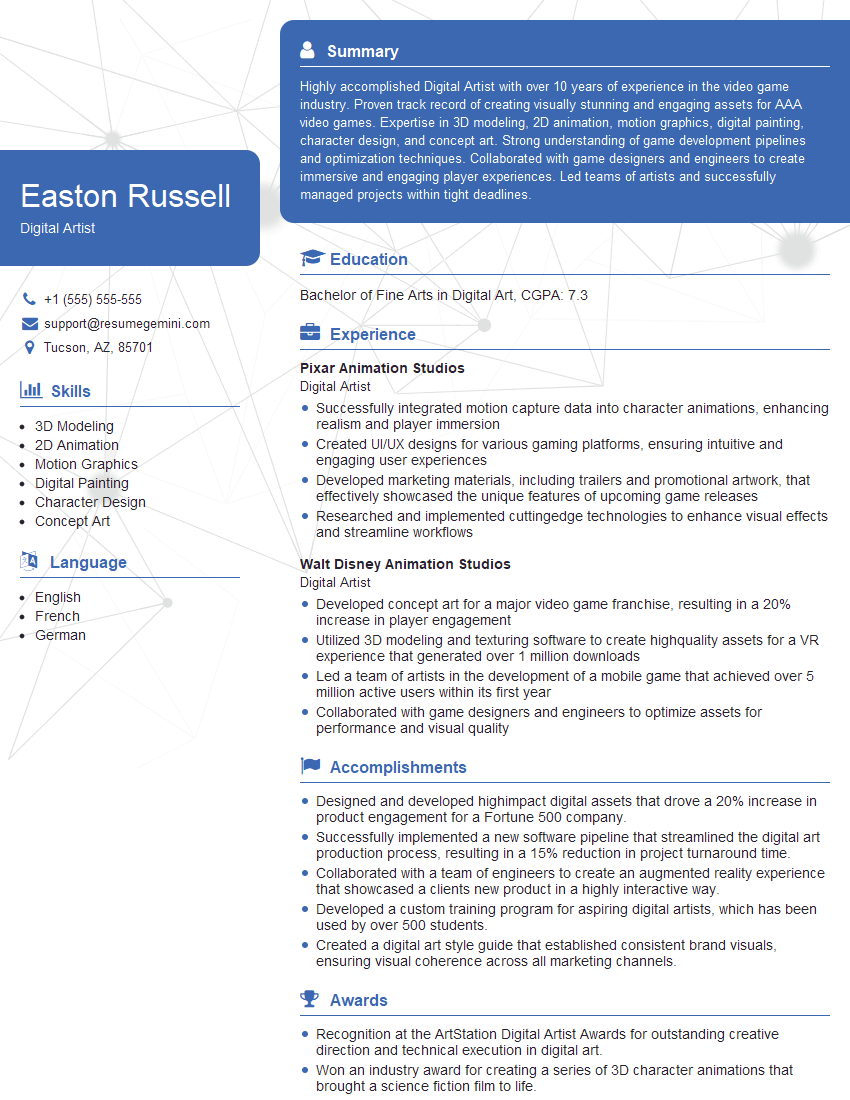
Digital Artist Resume Sample
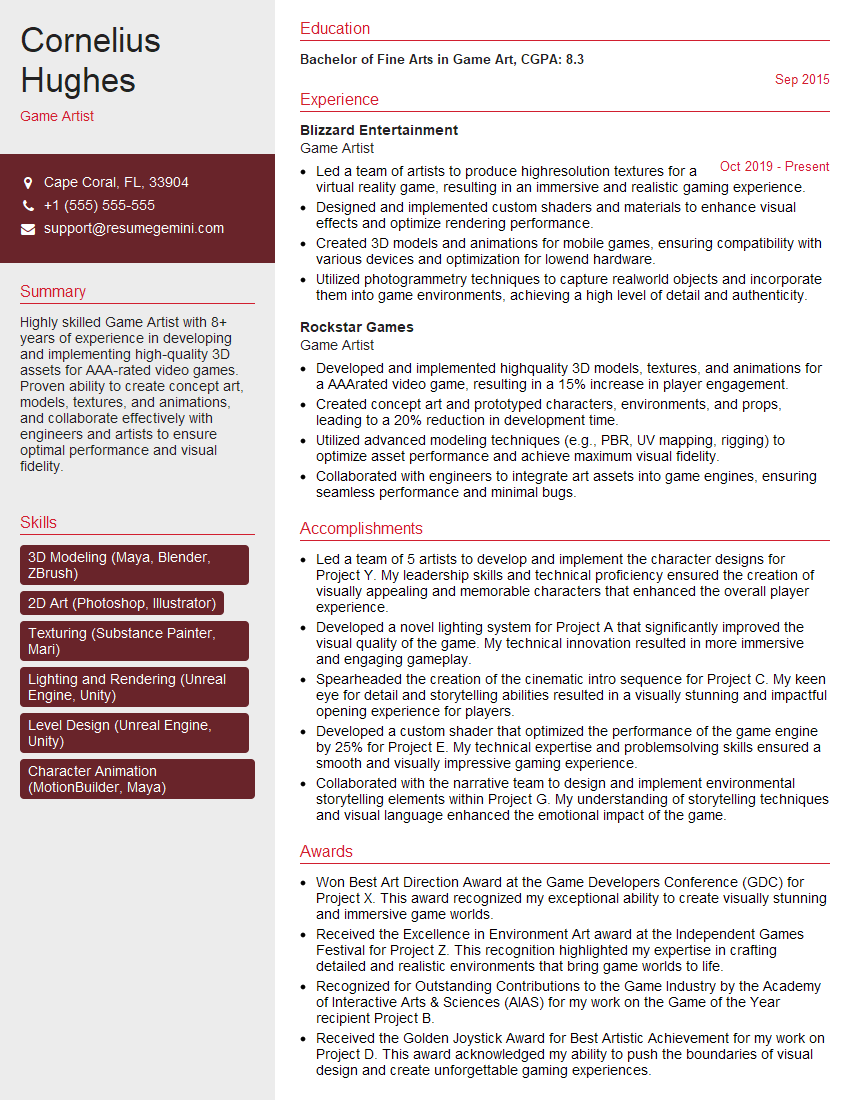
Game Artist Resume Sample

Graphic Designer Resume Sample
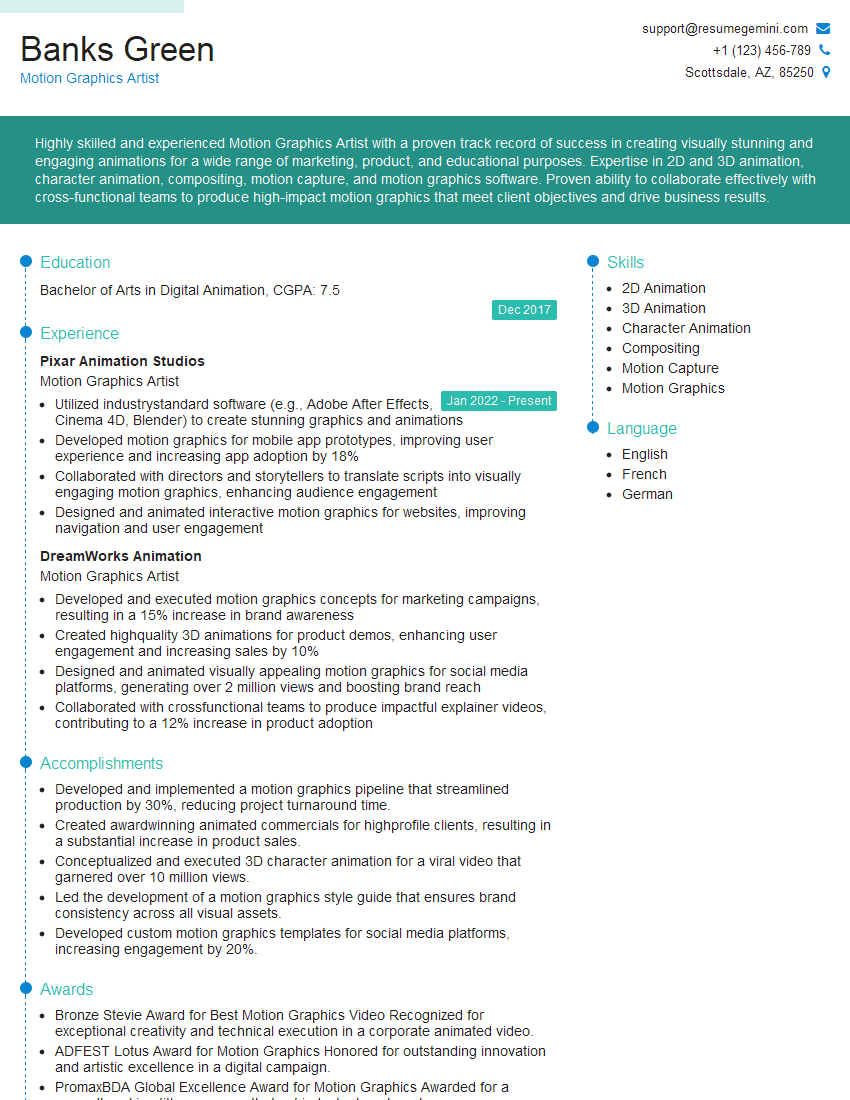
Motion Graphics Artist Resume Sample
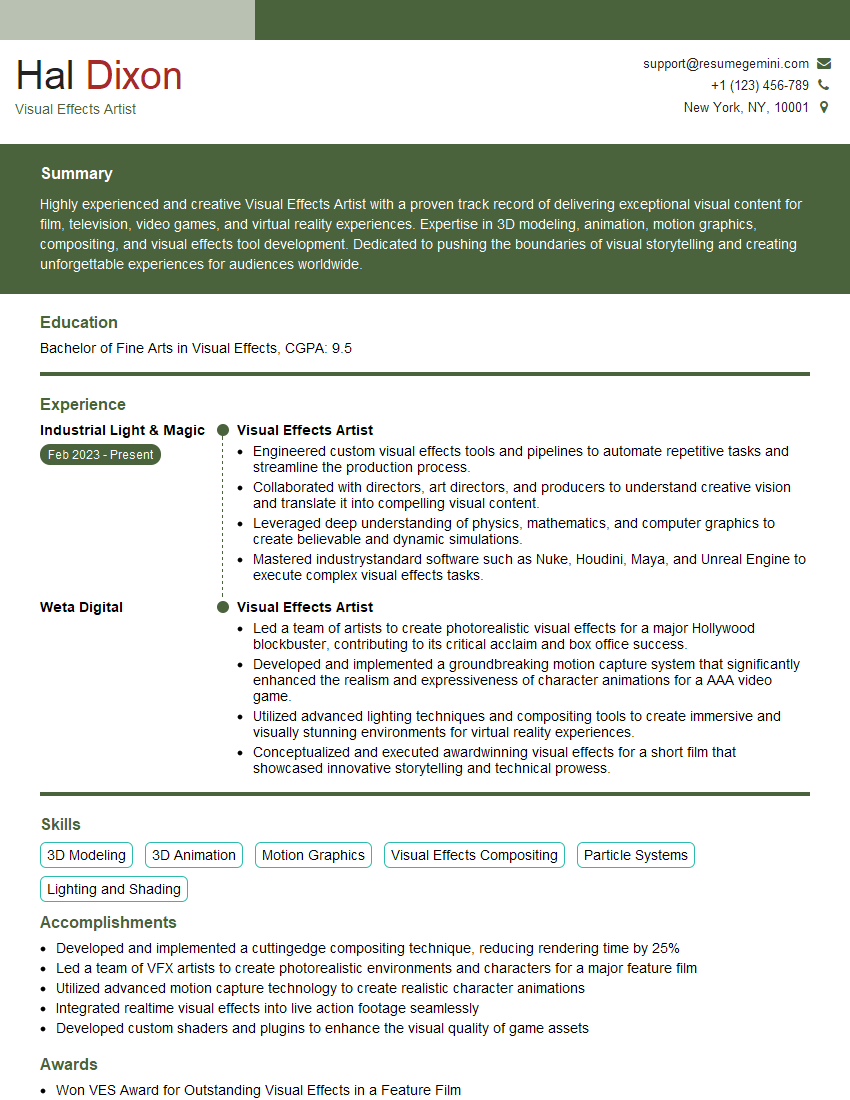
Visual Effects Artist Resume Sample
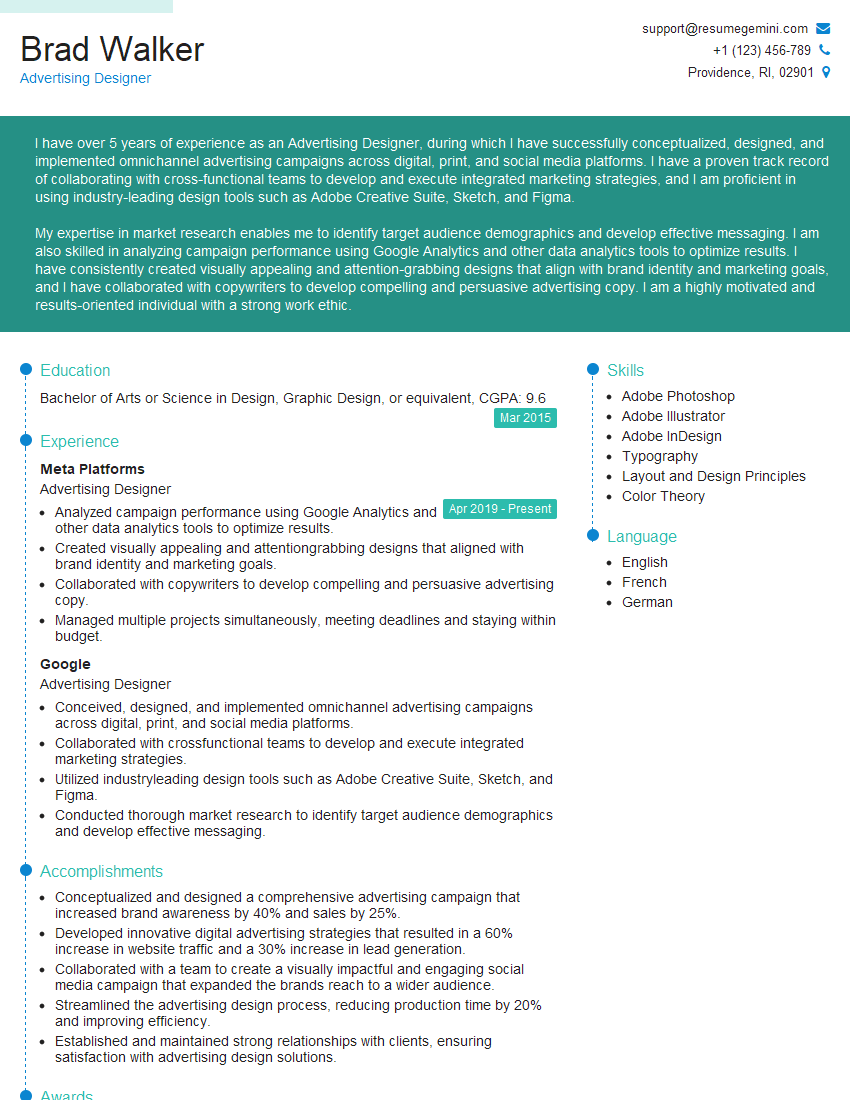
Advertising Designer Resume Sample
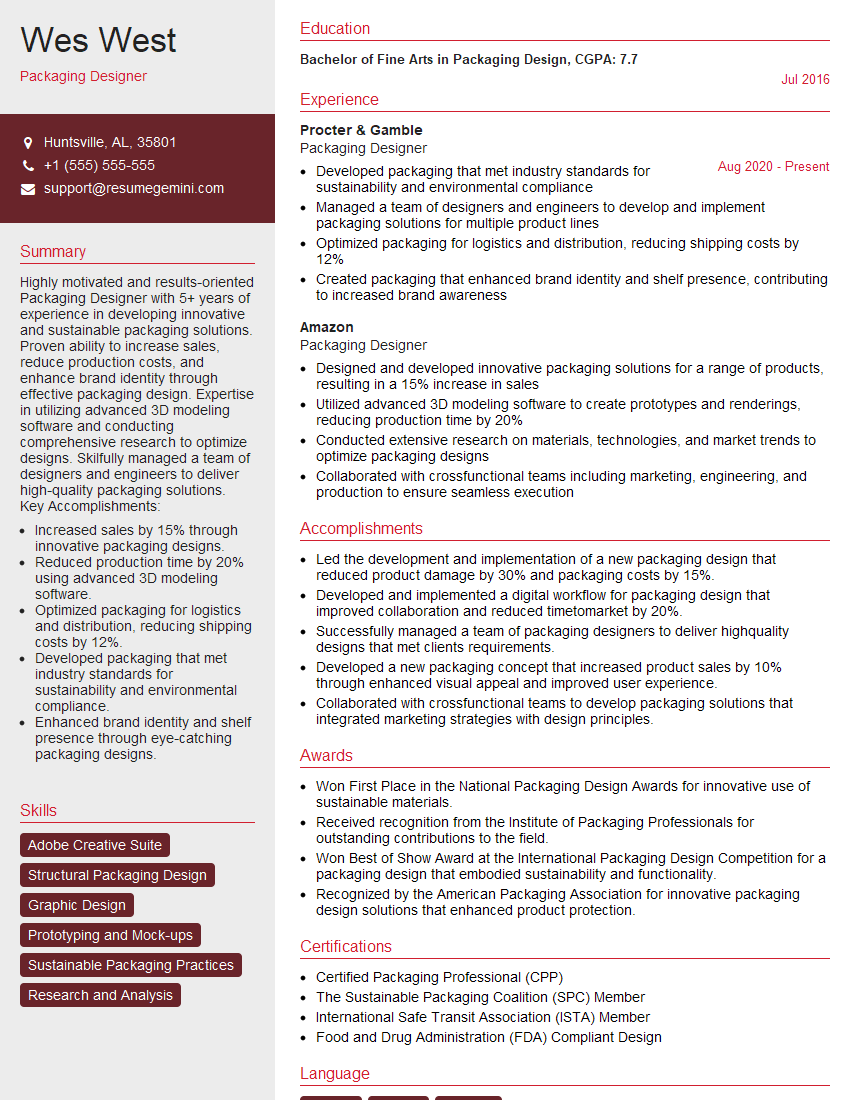
Packaging Designer Resume Sample

Photo Editor Resume Sample
Explore more articles
Users Rating of Our Blogs
Share Your Experience
We value your feedback! Please rate our content and share your thoughts (optional).
What Readers Say About Our Blog
Really detailed insights and content, thank you for writing this detailed article.
IT gave me an insight and words to use and be able to think of examples