Are you ready to stand out in your next interview? Understanding and preparing for Markup Language interview questions is a game-changer. In this blog, we’ve compiled key questions and expert advice to help you showcase your skills with confidence and precision. Let’s get started on your journey to acing the interview.
Questions Asked in Markup Language Interview
Q 1. Explain the difference between HTML, XML, and XHTML.
HTML, XML, and XHTML are all markup languages, but they serve different purposes and have distinct features. Think of them as cousins with different jobs.
- HTML (HyperText Markup Language) is designed for structuring and presenting content on the World Wide Web. It focuses on displaying information visually, using tags to define elements like headings, paragraphs, images, and links. It’s primarily concerned with *how* the content looks.
- XML (Extensible Markup Language) is a more general-purpose markup language. Unlike HTML, which has predefined tags, XML lets you define your own custom tags, making it ideal for data storage and transportation. It’s focused on *what* the data is and its structure, rather than visual presentation. Think of it as a flexible container for data.
- XHTML (Extensible HyperText Markup Language) is a reformulation of HTML as an XML application. It combines the strengths of HTML’s ease of use with XML’s stricter syntax rules and well-formedness requirements. This means XHTML documents must be meticulously structured and validated. It’s essentially HTML with stricter rules for better data integrity.
In short: HTML is for displaying web pages, XML is for structured data, and XHTML is a stricter, XML-compliant version of HTML.
Example: Imagine you’re writing a recipe. HTML would format the recipe for display on a website. XML would store the recipe’s ingredients and instructions in a structured way that a program could easily read and process. XHTML would do the same as HTML but with a more rigorous, XML-compliant syntax.
Q 2. What are semantic HTML5 elements and why are they important?
Semantic HTML5 elements are tags that describe the meaning or purpose of content, rather than just its visual presentation. Instead of relying solely on styling to convey information, these elements provide context to search engines, assistive technologies (like screen readers), and developers. This leads to better accessibility, SEO, and maintainability.
<article>: Represents a self-contained piece of content, like a blog post or news article.<aside>: Contains content tangentially related to the main content, such as a sidebar.<nav>: Groups navigational links.<header>: Introduces a section or page.<footer>: Contains closing information for a section or page.<main>: Specifies the main content of a document.
Importance: Using semantic elements improves accessibility for users with disabilities, enhances SEO by providing clear structural information to search engine crawlers, and simplifies code maintenance and readability for developers. Imagine trying to understand a website’s structure if all paragraphs were simply <div> elements; semantic HTML makes it clear what each section is.
Q 3. Describe the Document Object Model (DOM).
The Document Object Model (DOM) is a programming interface for HTML and XML documents. It represents the page so that programs can easily access and manipulate its content, structure, and style. Think of it as a tree-like representation of your web page, where each element is a node in the tree.
The DOM allows JavaScript and other languages to interact with the page dynamically. You can add, remove, or change elements, modify their attributes, and respond to user events. For example, when you click a button that changes the content of a webpage, JavaScript is manipulating the DOM to achieve this effect. This is crucial for modern interactive web applications.
Example: Imagine a webpage with a list of items. Using the DOM, a JavaScript program could easily add a new item to that list, remove an existing one, or change the text of an item without reloading the entire page.
Q 4. Explain the purpose and use of CSS in conjunction with HTML.
CSS (Cascading Style Sheets) is a language used to style HTML elements. It controls the visual presentation of a web page, including colors, fonts, layout, and responsiveness. HTML provides the structure and content, while CSS provides the visual presentation. They work together like a team – HTML defines what, CSS defines how it looks.
Purpose: CSS separates content from presentation, making websites easier to maintain and update. Changing the style of a website becomes a simple CSS modification, without needing to alter the underlying HTML. This improves efficiency and code organization.
Use: CSS rules are applied to HTML elements using selectors. For example, you can target all <p> elements and change their font color. This separation of concerns allows for cleaner, more organized, and easily maintainable code.
Example: <p style="color:blue;">This paragraph is blue.</p> This uses inline CSS. A more efficient approach is to define styles externally in a separate CSS file and link it to the HTML.
Q 5. How do you ensure your HTML code is valid and well-formed?
Ensuring valid and well-formed HTML is crucial for a website’s functionality, accessibility, and SEO. A well-formed document follows the basic syntax rules of HTML, while a valid document adheres to the specifications defined by the HTML standard.
- Well-formedness: This means all opening tags have corresponding closing tags, tags are properly nested, and attribute values are correctly quoted. Think of it as grammatical correctness in a sentence.
- Validity: This involves checking the document against the official HTML specification to ensure that all tags and attributes are used correctly and according to the standard. Think of it as adhering to the rules of the language.
Methods for validation:
- W3C Markup Validation Service: Use this online tool to check your HTML for validity. It provides detailed error reports that highlight any issues.
- Linters and code editors: Many code editors and IDEs integrate linters that check your code for errors and suggest improvements in real-time.
By adhering to these practices, you ensure better browser compatibility, improved accessibility, and higher search engine rankings.
Q 6. What are the common HTML attributes and their uses?
Common HTML attributes provide additional information about elements, modifying their behavior or presentation. They’re like modifiers to your basic HTML tags. Here are a few examples:
id: A unique identifier for an element within a document. It’s often used for styling or scripting purposes (e.g.,<div id="myDiv">).class: Assigns one or more class names to an element, allowing for more flexible styling and selection (e.g.,<p class="intro paragraph">).style: Applies inline CSS to an element (e.g.,<h1 style="color:red;">). Generally avoid this for larger projects; prefer external CSS files for better organization.src: Specifies the URL for an image or other resource (e.g.,<img src="image.jpg">).href: Specifies the URL for a hyperlink (e.g.,<a href="https://www.example.com">).alt: Provides alternative text for images, important for accessibility (e.g.,<img src="image.jpg" alt="Description of the image">).
Understanding attributes is crucial for controlling element behavior and presentation. They allow for a greater level of customization and flexibility within your HTML.
Q 7. What are the different heading levels in HTML and how do you use them effectively?
HTML provides six levels of headings, from <h1> to <h6>. They represent a hierarchical structure within your content, establishing the importance and relationships between sections. Think of them as outlining a document.
<h1>: Main heading – usually the title of the page or a major section.<h2>: Subheading – used for major subsections within the<h1>.<h3>: Sub-subheading – and so on, down to<h6>.
Effective Use: Use headings in a logical, hierarchical order. Start with <h1> for the main topic, then use <h2> for major sections, <h3> for subsections, and so on. Don’t skip levels; this disrupts the logical structure. Use headings to create clear structure and improve readability. Search engines also use headings to understand the page’s content, improving your SEO.
Example: A poorly structured page might have multiple <h1> tags, while a well-structured page follows a consistent hierarchy, making the content easier to navigate and understand.
Q 8. Explain the use of meta tags in HTML.
Meta tags in HTML are essentially instructions to the browser and search engines about the webpage. They don’t directly affect the visual content displayed to the user, but they provide crucial information that impacts how the page is indexed, shared, and displayed. Think of them as behind-the-scenes instructions.
For example, the <meta charset="UTF-8"> tag specifies the character encoding, ensuring the page displays correctly across different systems. The <meta name="description" content="A concise description of your webpage"> tag provides a summary used by search engines in search results and social media previews, greatly influencing click-through rates.
Other common meta tags include those specifying viewport settings for responsiveness (<meta name="viewport" content="width=device-width, initial-scale=1">), keywords (although less crucial now due to SEO algorithm changes), and author information. Properly implemented meta tags contribute significantly to your webpage’s SEO and overall user experience.
Q 9. How do you handle different screen sizes and resolutions using HTML and CSS?
Handling different screen sizes and resolutions effectively is critical for a positive user experience. We achieve this primarily using a combination of HTML and CSS. HTML provides the structure, while CSS handles the visual presentation and adapts it to various devices.
One key technique involves using CSS media queries. These allow you to apply different styles based on screen size, resolution, or orientation. For example:
<style>
@media (max-width: 768px) {
  /* Styles for screens smaller than 768px */
  .container {
    width: 90%;
  }
}
</style>
This code snippet applies specific styles to the element with the class container only when the screen width is 768 pixels or less. We can adjust font sizes, layout (using techniques like flexbox or grid), and image sizes to ensure readability and proper visual presentation across all devices. Think of this as providing different outfits for your webpage depending on the occasion (i.e., device).
Q 10. Explain the concept of responsive web design.
Responsive web design is the approach of building websites that adapt seamlessly to different screen sizes and devices, providing an optimal viewing experience on everything from desktops and laptops to tablets and smartphones. It’s about creating a single website that automatically adjusts its layout and content to fit the user’s device without requiring separate versions.
The core principles of responsive web design include using flexible layouts (often implemented with CSS’s flexbox or grid system), flexible images (using the max-width: 100% property), and media queries to tailor styling based on device characteristics. Instead of designing for specific resolutions, we design for fluidity and adaptability – imagine a chameleon changing its color to blend in with its environment, that’s essentially what responsive design does.
The benefits are obvious: improved user experience, increased accessibility, better search engine optimization (SEO), and reduced development costs compared to creating separate websites for each device.
Q 11. What are some common HTML5 form elements and their attributes?
HTML5 provides a rich set of form elements to create interactive forms. These elements offer enhanced usability and semantic meaning.
<input>: A versatile element with various types liketext,password,email,number,radio,checkbox,date,file, etc. Attributes includetype,name,value,required,placeholder.<textarea>: For multi-line text input.<select>: Creates dropdown lists. Uses<option>elements for choices.<button>: Creates buttons for form submission or other actions.<label>: Associates labels with form elements, improving accessibility and usability. Theforattribute connects the label to the element’sid.
Each element can be further customized with attributes to control validation, appearance, and behavior. For instance, the required attribute makes a field mandatory, while placeholder provides a helpful hint within the input field.
Q 12. How do you handle form submission and validation in HTML?
Form submission and validation are crucial for gathering and verifying user input. In HTML, you handle submission using the <form> element’s action attribute (specifying the URL to send the data) and method attribute (typically GET or POST). Validation can be implemented in several ways:
- Client-side validation: This uses JavaScript to check the input before submission. It provides immediate feedback to the user but isn’t foolproof, as users can disable JavaScript.
- Server-side validation: This happens on the server after the form is submitted. It’s more secure and reliable as it verifies the data regardless of client-side scripts. Languages like PHP, Python, Node.js, etc., handle server-side validation.
- HTML5 built-in validation: HTML5 provides attributes like
required,pattern,min,max, etc., that perform basic validation. The browser will flag invalid input preventing form submission.
A well-designed form should ideally combine client-side and server-side validation for a robust and user-friendly experience. Client-side validation gives instant feedback, while server-side validation ensures data integrity.
Q 13. Describe the difference between inline, block, and inline-block elements.
The terms ‘inline,’ ‘block,’ and ‘inline-block’ refer to how HTML elements are displayed and how they affect the page layout. Think of these as personalities of the elements.
- Inline elements: These elements only take up as much width as necessary and don’t start on a new line. They flow within the text like words in a sentence. Examples include
<span>,<a>,<img>. - Block elements: These elements always start on a new line and take up the full width available. Examples include
<p>,<div>,<h1>to<h6>. They create separate blocks of content. - Inline-block elements: These elements behave like inline elements in that they flow within a line, but they can have width and height properties set, unlike pure inline elements. This provides flexibility in controlling both the position and dimensions of the element. It’s a hybrid approach, combining the benefits of both inline and block elements. They are exceptionally useful when we want to place items side-by-side while maintaining control over their dimensions.
Understanding these display properties is fundamental for effectively controlling the layout and positioning of elements on a webpage.
Q 14. What are CSS frameworks, and name a few examples.
CSS frameworks are pre-written libraries of CSS code that provide a structure and style for web pages. They offer a consistent and efficient way to build responsive and visually appealing websites. They’re like pre-fabricated building blocks that speed up development.
These frameworks offer reusable components, consistent styling, and a responsive design approach, dramatically reducing development time and effort. They also often include JavaScript components and utilities.
- Bootstrap: One of the most popular frameworks, known for its ease of use and wide community support.
- Tailwind CSS: A utility-first framework, offering highly customizable styling through a set of pre-defined utility classes.
- Foundation: Another robust framework focused on responsive design and accessibility.
- Materialize: Inspired by Google’s Material Design principles, offering a clean and modern aesthetic.
Choosing the right framework depends on project requirements, personal preferences, and team expertise. Each framework offers unique features and strengths.
Q 15. Explain the box model in CSS.
The CSS box model is a fundamental concept that describes how elements are rendered on a webpage. Imagine each HTML element as a box composed of several layers: the content, padding, border, and margin. Understanding these layers is crucial for controlling an element’s size and position.
- Content: This is the actual content of the element, like text or images.
- Padding: The space between the content and the border. It’s part of the element’s total width and height.
- Border: A line that surrounds the padding and content.
- Margin: The space outside the border, separating the element from other elements. It doesn’t contribute to the element’s total width and height.
For example, if you have an element with 10px padding, 2px border, and 5px margin, the total width will be the content width + 20px (padding) + 4px (border) while the margin is added externally. Understanding this helps in precise layout design.
This is contentCareer Expert Tips:
- Ace those interviews! Prepare effectively by reviewing the Top 50 Most Common Interview Questions on ResumeGemini.
- Navigate your job search with confidence! Explore a wide range of Career Tips on ResumeGemini. Learn about common challenges and recommendations to overcome them.
- Craft the perfect resume! Master the Art of Resume Writing with ResumeGemini’s guide. Showcase your unique qualifications and achievements effectively.
- Don’t miss out on holiday savings! Build your dream resume with ResumeGemini’s ATS optimized templates.
Q 16. What are the different ways to include CSS in an HTML document?
There are three primary ways to include CSS in an HTML document:
- Inline Styles: Applying CSS directly within an HTML element using the
styleattribute. This is least preferred for large projects due to maintainability issues.<p style="color:blue;"></p> - Internal Stylesheet: Embedding CSS within the
<head>section of the HTML document using the<style>tag. This is suitable for smaller projects where CSS is specific to a single page. - External Stylesheet: Linking to a separate CSS file using the
<link>tag in the<head>. This is the best approach for larger projects, promoting reusability and better organization.<link rel="stylesheet" href="styles.css">
Choosing the right method depends on project complexity and maintainability needs. External stylesheets are generally recommended for larger projects due to their organization and reusability.
Q 17. Explain the use of CSS selectors.
CSS selectors are patterns used to select HTML elements to which CSS rules will be applied. They are the key to targeting specific elements and applying styles precisely. There are various types of selectors:
- Element Selectors: Select elements based on their tag name (e.g.,
p,div,h1). - Class Selectors: Select elements with a specific class attribute (e.g.,
.myClass). - ID Selectors: Select a single element with a specific ID attribute (e.g.,
#myID). - Attribute Selectors: Select elements based on their attributes (e.g.,
[type="text"]). - Pseudo-classes and Pseudo-elements: Select elements based on their state (e.g.,
:hover,::before). - Combinators: Combine multiple selectors to target more specific elements (e.g., descendant selector
div p, child selectordiv > p).
For instance, p.highlight { color: red; } styles all paragraph elements with the class “highlight” in red.
Q 18. How do you manage CSS specificity?
CSS specificity determines which styles are applied when multiple rules target the same element. It’s a system of weights assigned to selectors.
- Inline styles have the highest specificity.
- ID selectors have higher specificity than class selectors.
- Class selectors and attribute selectors have equal specificity, and higher than element selectors.
- Multiple selectors of the same type add up.
- !important declaration overrides all other specificity rules.
To manage specificity, you should prioritize more specific selectors (IDs) for unique elements and avoid overusing !important. Understanding specificity helps prevent unexpected styling conflicts and create predictable outcomes. In cases of conflict, the rule with the highest specificity wins. If specificity is equal, the last rule defined in the stylesheet takes precedence.
Q 19. What is the purpose of XML and how is it different from HTML?
XML (Extensible Markup Language) is a markup language designed for encoding documents in a format that is both human-readable and machine-readable. Unlike HTML, which is designed for displaying data on a web page, XML focuses on the structure and meaning of data itself. Think of HTML as the presentation layer and XML as the data layer.
Key differences:
- Purpose: HTML is for displaying data, XML is for structuring and transporting data.
- Syntax: HTML has predefined tags, XML allows custom tags. HTML is more forgiving with syntax errors, XML is strict.
- Predefined Structure: HTML has a fixed structure; XML is extensible.
XML’s flexibility allows it to be used in a wide range of applications, including data exchange between systems, configuration files, and data storage.
Q 20. Explain XML schema and DTD.
Both XML Schema (XSD) and Document Type Definition (DTD) are used to define the structure and content of XML documents, ensuring validity and consistency. However, they differ significantly in their capabilities and complexity.
- DTD: A simpler, older approach for defining XML structure. It uses a limited set of features and is less expressive than XSD.
- XSD: A more powerful and flexible method. It uses XML itself to define the schema, offering data typing, complex data structures, and better error handling.
In essence, DTDs are like simple blueprints, while XSDs are like detailed architectural plans. XSDs provide more advanced features, including data types (integers, strings, dates), element constraints (min/max occurrences), and complex element definitions.
Q 21. How do you parse XML data in a programming language (e.g., JavaScript, Python)?
Parsing XML data involves reading and interpreting the XML structure to extract the data within. The approach varies based on the programming language, but the general concept remains the same.
JavaScript: DOMParser can be used to parse XML strings, allowing access to the XML tree structure. const parser = new DOMParser(); const xmlDoc = parser.parseFromString(xmlString, "text/xml");
Python: Libraries like xml.etree.ElementTree provide convenient methods for parsing XML files. import xml.etree.ElementTree as ET; tree = ET.parse('data.xml'); root = tree.getroot();
After parsing, you can traverse the tree structure using methods like getElementsByTagName() (JavaScript) or iterating through child elements (Python) to retrieve specific data based on the XML tags.
Q 22. Describe different methods of image optimization for web pages.
Image optimization is crucial for web performance. It involves reducing the file size of images without significantly impacting visual quality. This improves page load times, leading to a better user experience and higher search engine rankings. Several methods achieve this:
Compression: Tools like TinyPNG or ImageOptim use lossy or lossless compression algorithms to reduce file size. Lossy compression removes some image data, resulting in smaller files but potentially some quality loss. Lossless compression reduces file size without data loss, ideal for images with sharp details or text.
Format Selection: Choosing the right image format is vital. JPEG is best for photographs, offering good compression with some quality loss. PNG is suitable for images with sharp lines, logos, and text, providing lossless compression. WebP offers superior compression compared to both JPEG and PNG, but browser support might be a consideration.
Resizing: Images should be sized appropriately for their use on the page. Uploading a huge image and relying on CSS to shrink it is inefficient. Use image editing software to resize images before uploading. Consider using responsive images to serve different sizes to different devices.
Lazy Loading: This technique delays the loading of images until they’re about to be visible in the viewport. This is particularly beneficial for long pages with many images. It’s implemented using the
loading="lazy"attribute in theimgtag.Image Sprites: Combine multiple small images into a single, larger image. This reduces HTTP requests, improving page load speed. CSS is then used to display the individual parts of the sprite.
For instance, if I’m working on an e-commerce site with many product images, I’d use a combination of WebP format, lossy compression, and lazy loading to optimize for speed and a good user experience. I’d also employ responsive images to ensure fast loading on all devices.
Q 23. Explain the importance of accessibility in web design.
Accessibility in web design ensures that websites are usable by everyone, regardless of their abilities. This includes people with visual, auditory, motor, or cognitive impairments. Accessible websites are inclusive, broadening your audience and adhering to ethical design principles. Search engines also favor accessible websites, potentially improving SEO.
Imagine a visually impaired user navigating your website using a screen reader. If your website isn’t accessible, they might be unable to understand the content or interact with it effectively. Similarly, a user with motor impairments may find it difficult to use a website without proper keyboard navigation.
In short, accessible design isn’t just a matter of compliance; it’s about creating a website that’s truly useful and enjoyable for all users.
Q 24. What are some common accessibility best practices for HTML and CSS?
Several HTML and CSS best practices promote accessibility:
Semantic HTML: Use appropriate HTML elements (
<header>,<nav>,<main>,<article>,<aside>,<footer>) to structure content logically. This allows assistive technologies to understand the content’s context.Alternative Text for Images (
altattribute): Provide descriptive alternative text for all images. This allows screen readers to convey the image’s meaning to visually impaired users. For decorative images, usealt="".Captions and Transcripts for Multimedia: Add captions to videos and transcripts to audio content. This enables deaf or hard-of-hearing users to access the information.
Sufficient Color Contrast: Ensure adequate color contrast between text and background. Tools like WebAIM’s color contrast checker help assess contrast ratios. This is crucial for users with low vision.
Keyboard Navigation: Design the website to be fully navigable using only the keyboard. All interactive elements should be focusable.
Meaningful Link Text: Use descriptive link text instead of generic phrases like “click here.” This improves usability for everyone, not just screen reader users.
ARIA Attributes: Use Accessible Rich Internet Applications (ARIA) attributes to add semantic information to HTML elements not adequately described by HTML alone. For instance, ARIA attributes help screen readers better interpret dynamic content.
For example, instead of <img src="image.jpg">, use <img src="image.jpg" alt="A beautiful sunset over the ocean">. This simple change makes the image accessible to users of assistive technologies.
Q 25. How would you debug HTML and CSS issues in a web browser?
Debugging HTML and CSS issues involves a combination of browser developer tools and methodical troubleshooting:
Browser Developer Tools: Open your browser’s developer tools (usually by pressing F12). The “Elements” panel allows inspecting the HTML structure and CSS styles applied to each element. The “Console” panel displays JavaScript errors and other messages. The “Network” panel helps identify slow-loading resources.
Inspecting Elements: Click on an element in the webpage; the corresponding HTML and CSS will be highlighted in the developer tools. Check for incorrect tags, missing attributes, or conflicting styles.
Using the Console: The console helps identify JavaScript errors which often impact the display of HTML and CSS.
Checking the Network Tab: Identify slow loading resources (CSS or images) which cause a delay to load and render.
Using the Styles Panel: Check for conflicting styles (e.g., inline styles overriding external stylesheets). This is a common source of layout issues.
Disabling Browser Extensions: Temporary disable browser extensions that could potentially affect rendering.
Simplifying the CSS: Comment out sections of your CSS to pinpoint the source of problems. A methodical approach, gradually uncommenting, aids in isolating the faulty code. This is especially helpful when many CSS rules apply to the same element.
For example, if an element isn’t displaying correctly, I’d use the developer tools to inspect its CSS rules, checking for conflicting styles or incorrect selectors. If there are JavaScript errors in the console, I’d investigate those as they could be affecting the DOM (Document Object Model) and thus, the way HTML and CSS render.
Q 26. What are your preferred tools and techniques for validating HTML and CSS code?
My preferred tools for validating HTML and CSS are:
W3C Markup Validation Service: This service validates HTML and XHTML code against the W3C standards. It provides detailed error reports, helping identify structural problems.
W3C CSS Validation Service: This service validates CSS code against the CSS specifications. It points out syntax errors and other issues.
JSHint/ESLint: While not specifically for HTML/CSS, these tools help validate and maintain consistent coding practices in JavaScript. They indirectly help because JavaScript often interacts with HTML/CSS, and errors here can lead to rendering problems.
Browser Developer Tools: As mentioned, browser developer tools provide real-time feedback on HTML and CSS validation. They highlight errors and warnings in the code during development. They also provide powerful debugging capabilities.
I use a combination of these tools. I’ll frequently use the W3C validators during development for major structural and syntax checks. For smaller tasks, and real-time validation and feedback, I rely on browser developer tools, and the console. In larger projects with a JavaScript component, linting tools like ESLint become essential to ensure consistent, well-structured code.
Q 27. Explain your experience with version control systems (e.g., Git) in a web development context.
Git is an indispensable part of my workflow. I use it for version control in all my web development projects. My experience encompasses:
Repository Management: Creating, cloning, and managing both local and remote Git repositories (e.g., GitHub, GitLab, Bitbucket).
Branching and Merging: Using branching strategies (e.g., Gitflow) to manage different features and bug fixes concurrently. Proficiently merging branches and resolving merge conflicts.
Committing and Pushing: Writing clear and concise commit messages, regularly pushing changes to remote repositories for collaboration and backup.
Pulling and Updating: Pulling the latest changes from remote repositories to keep my local copy up-to-date.
Collaboration: Working effectively with others on Git-based projects, understanding pull requests, reviews, and code merges.
Conflict Resolution: Resolving merge conflicts efficiently and effectively.
Using Git Hooks: For example, implementing pre-commit hooks to run linters and formatters before committing code, ensuring code quality.
In a recent project, Git’s branching capabilities were essential for parallel development of different features. We were able to work independently on various parts of the website without interfering with each other’s work. The ability to easily merge our code after completion was crucial for delivering the project on time.
Q 28. Describe your experience with JavaScript frameworks or libraries (e.g., React, Angular, Vue.js) and how they interact with HTML.
I have significant experience with React, a popular JavaScript library for building user interfaces. React interacts with HTML through a component-based architecture. Each component can be thought of as a self-contained piece of the UI, and many components make up the entire application.
In React, we use JSX (JavaScript XML), a syntax extension that allows us to write HTML-like code within JavaScript. This JSX code is then transformed into regular JavaScript by Babel before the browser renders the webpage. This facilitates a clear separation between presentation (HTML-like JSX) and logic (JavaScript).
Example:
function MyComponent(props) { return ( <div> <h1>{props.name}</h1> <p>{props.description}</p> </div> ); }
In this example, the MyComponent function returns a JSX structure which represents HTML elements. React then takes this JSX and uses it to create and update the actual HTML elements on the page. This dynamic update capability is a core strength of React, allowing for efficient updates and interactive user experiences. While I haven’t extensively used Angular or Vue.js, the concept of component-based architecture and dynamic HTML manipulation is common across these frameworks.
My experience includes building complex single-page applications (SPAs) using React. The ability to manage state within components and efficiently update the DOM makes React my go-to framework for many projects. It’s flexibility and the large community support make it particularly useful.
Key Topics to Learn for Markup Language Interview
- HTML Fundamentals: Understanding the basic structure of an HTML document, including the head and body sections, elements, attributes, and tags. Practice creating well-structured and semantically correct HTML.
- Semantic HTML5: Mastering the use of semantic elements like `
`, ` - CSS Integration: Learn how to effectively link CSS stylesheets to your HTML documents and understand the cascade and specificity of CSS rules. Practice applying styles to create visually appealing and responsive websites.
- Accessibility (a11y): Explore techniques to make your HTML accessible to users with disabilities. This includes proper use of ARIA attributes, alt text for images, and semantic HTML.
- HTML Forms and Validation: Understand how to create effective HTML forms for user input, and how to implement client-side validation using HTML5 attributes. Practice handling form submissions and data processing.
- Problem-Solving with Markup: Develop your ability to debug HTML and CSS code, identify common errors, and troubleshoot layout issues. Practice using browser developer tools to inspect and modify code.
- Responsive Web Design Principles: Learn how to create websites that adapt to different screen sizes and devices using techniques like media queries and flexible layouts.
Next Steps
Mastering Markup Languages like HTML and CSS is crucial for a successful career in web development, opening doors to diverse and exciting roles. A strong foundation in these languages is highly sought after by employers. To maximize your job prospects, invest time in creating a professional and ATS-friendly resume that highlights your skills and experience effectively. ResumeGemini is a trusted resource to help you build a compelling resume that showcases your expertise in Markup Languages. Examples of resumes tailored to Markup Language roles are available to help guide you.
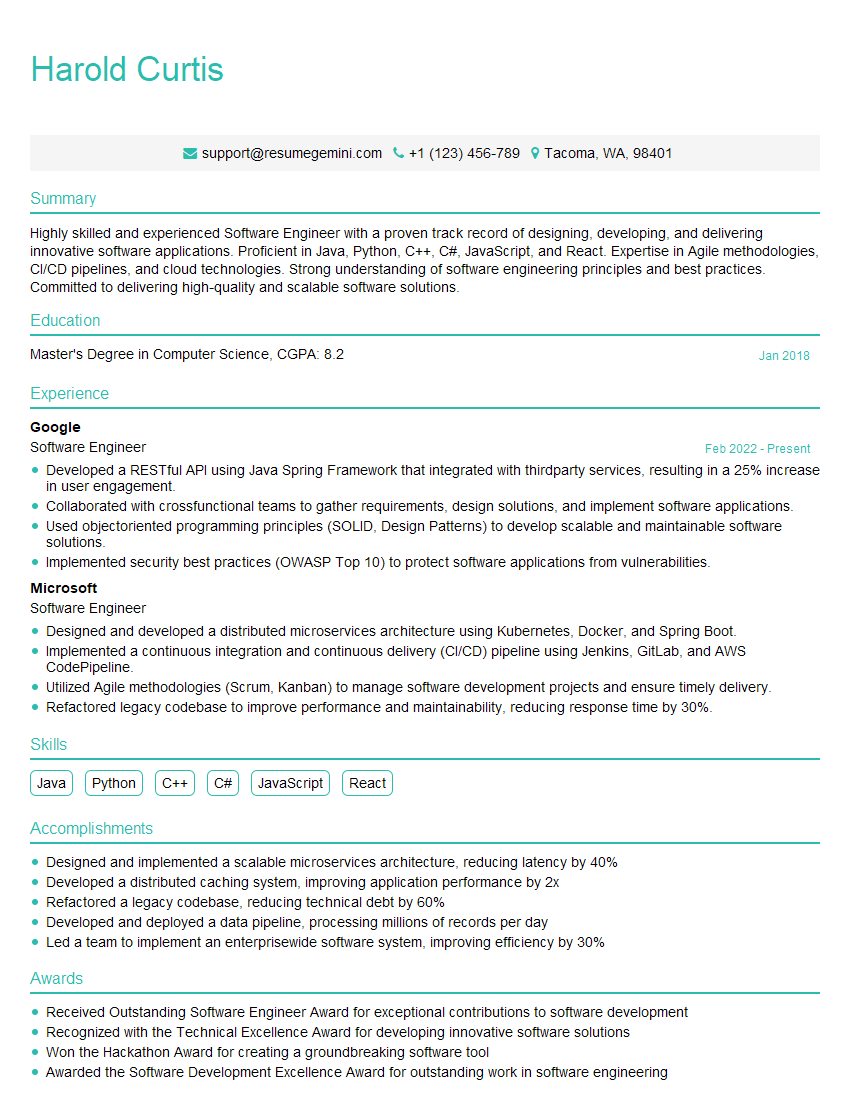
Software Engineer Resume Sample
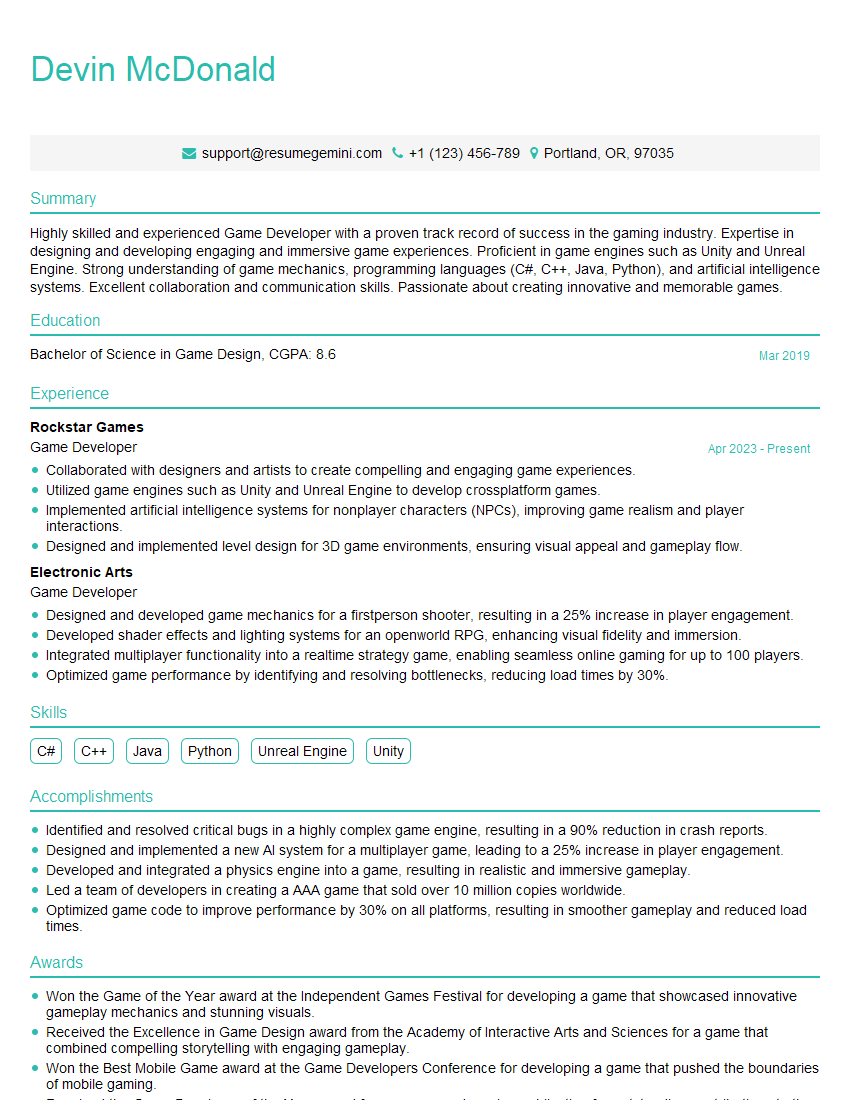
Game Developer Resume Sample

Information Architect Resume Sample

Web Designer Resume Sample
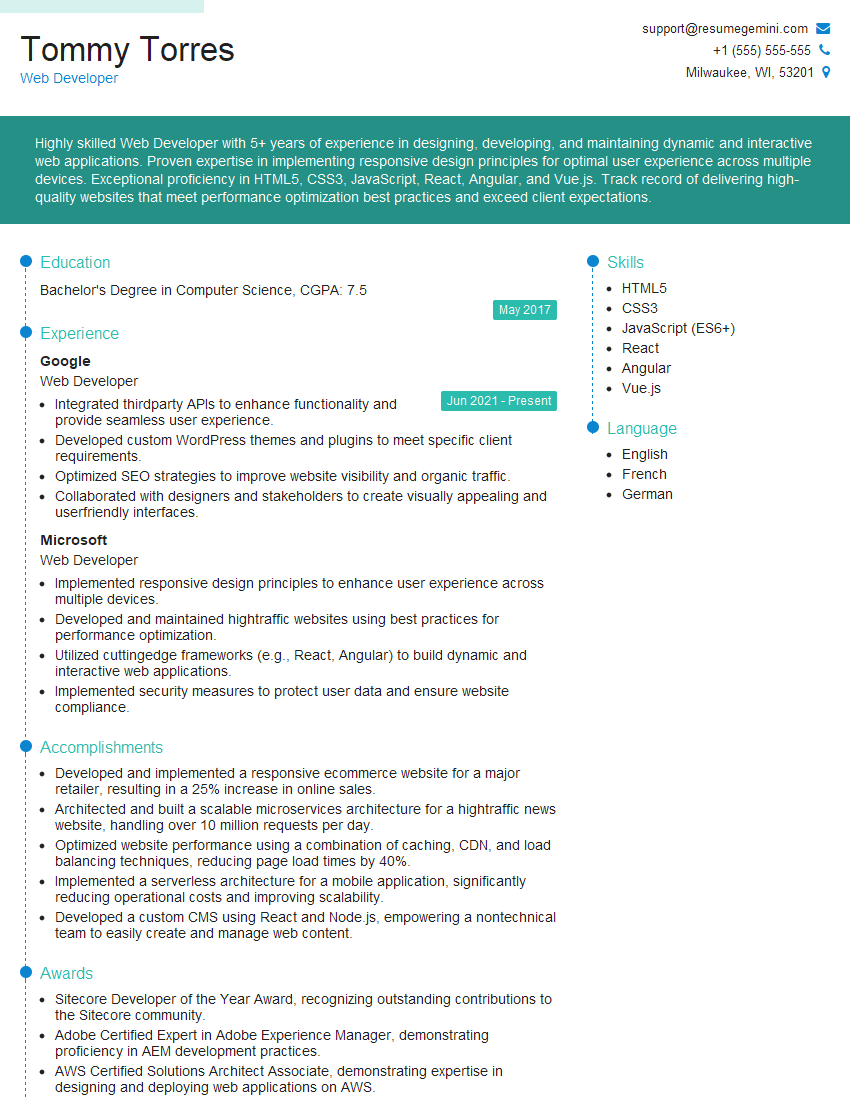
Web Developer Resume Sample
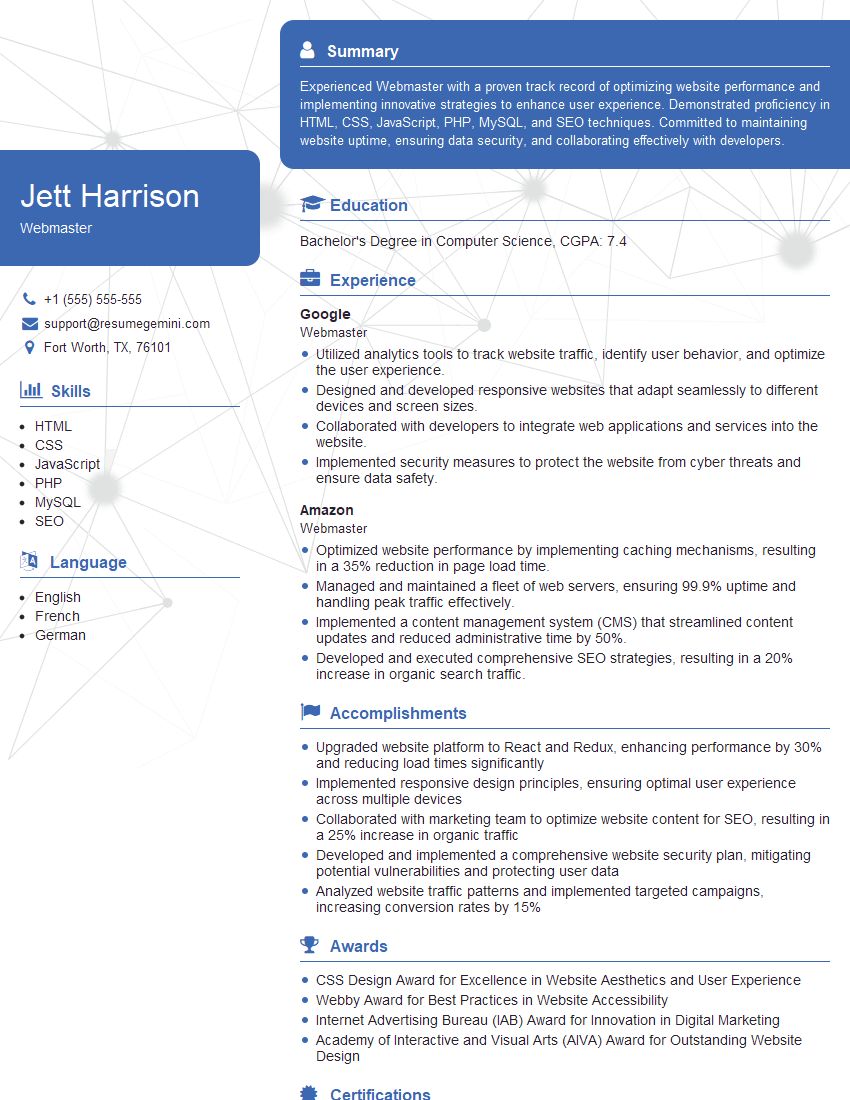
Webmaster Resume Sample
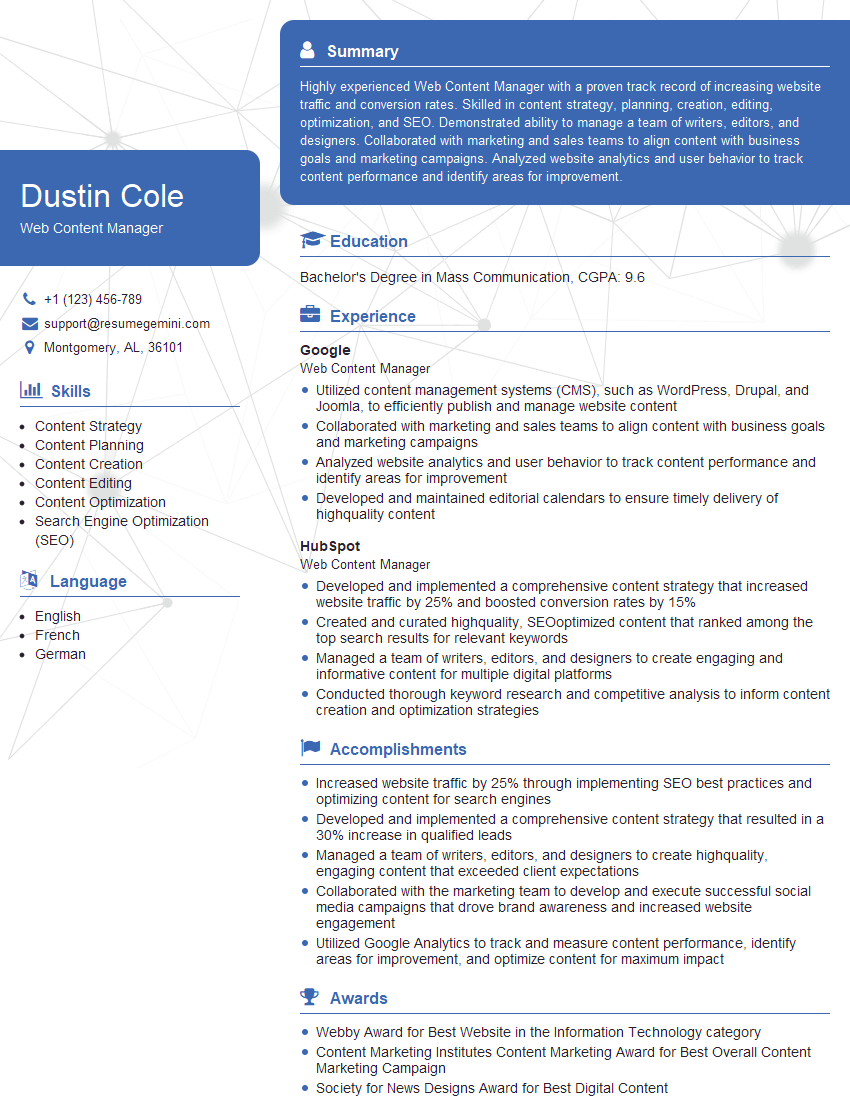
Web Content Manager Resume Sample

Technical Writer Resume Sample
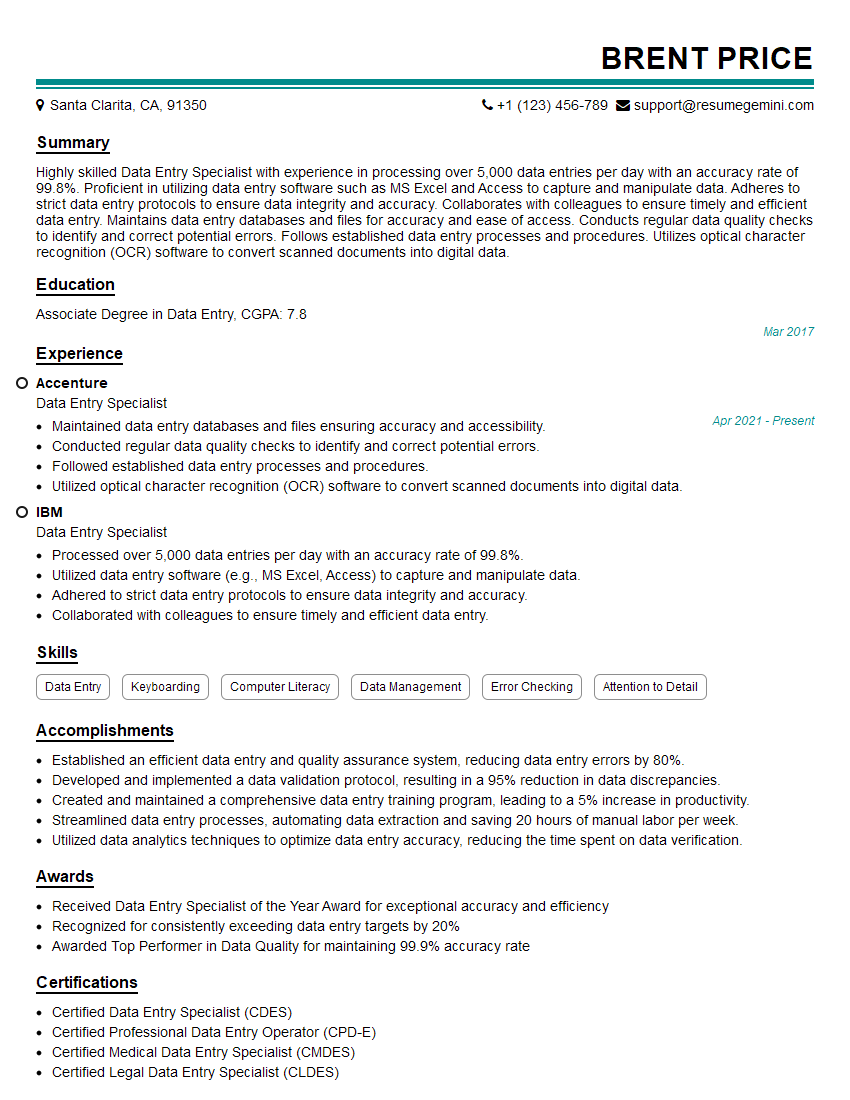
Data Entry Specialist Resume Sample
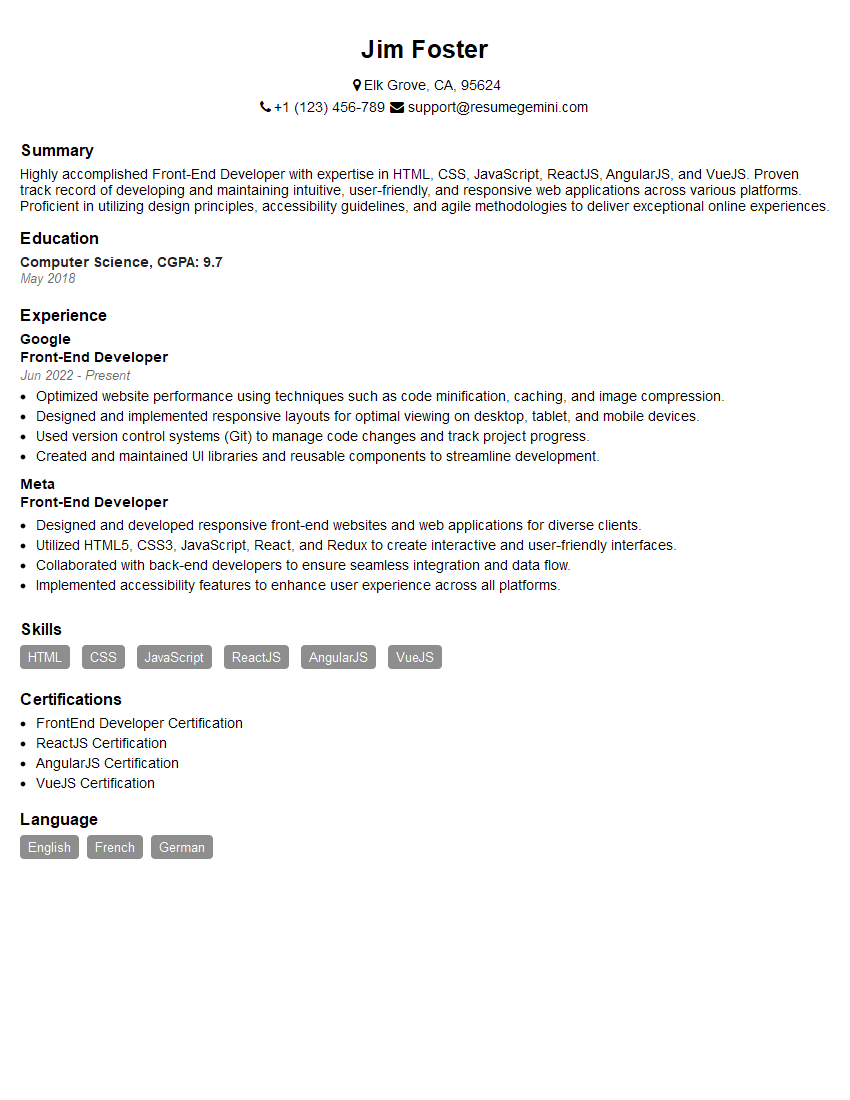
Front-End Developer Resume Sample
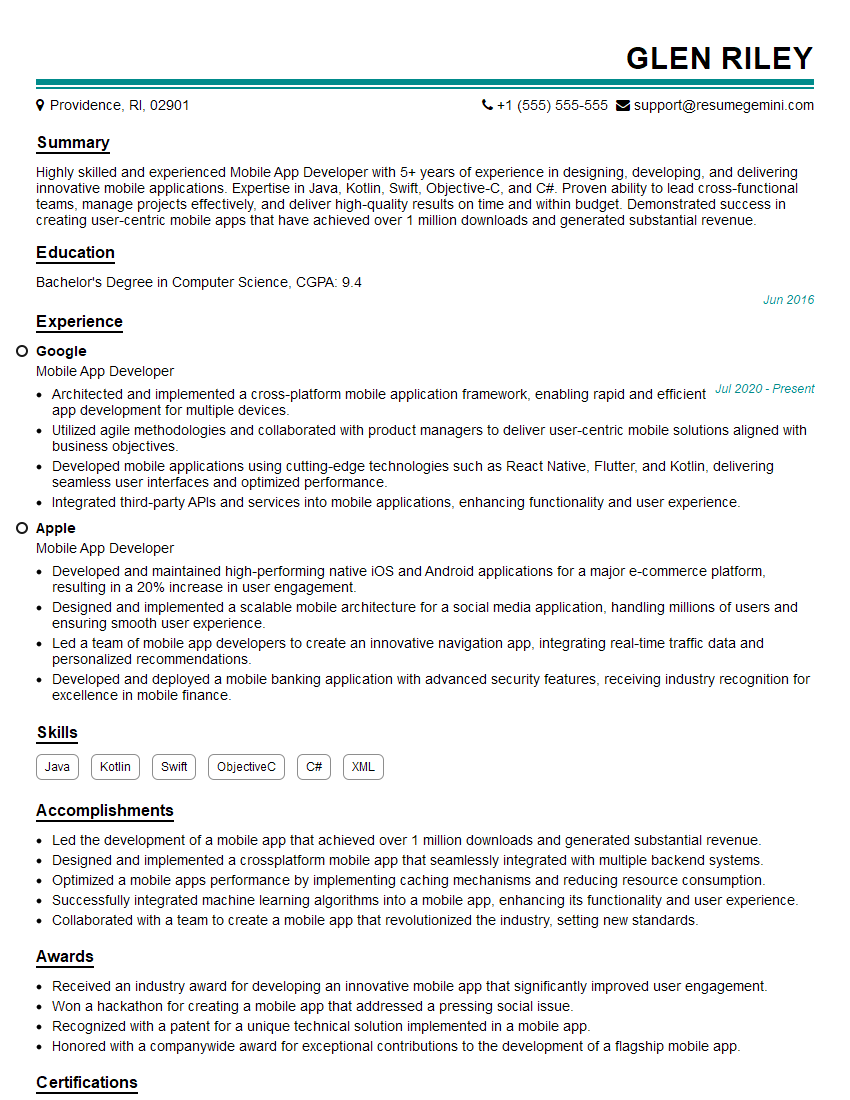
Mobile App Developer Resume Sample
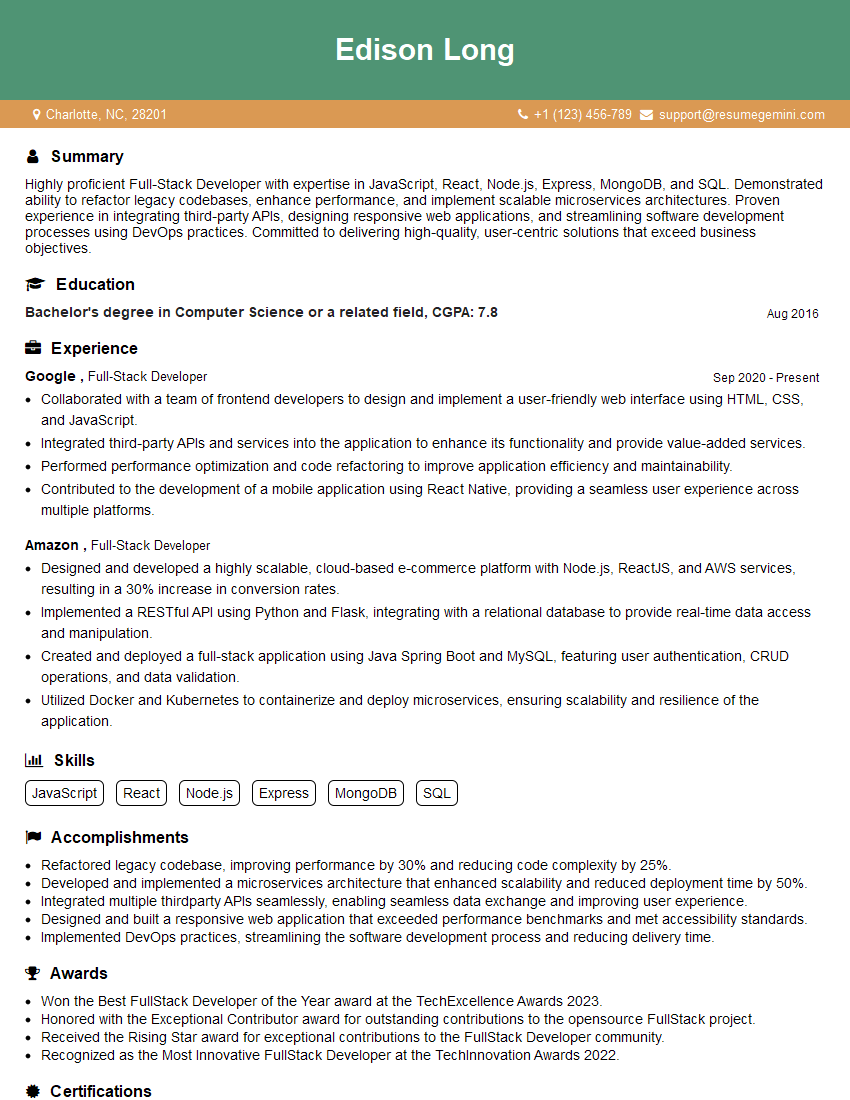
Full-Stack Developer Resume Sample
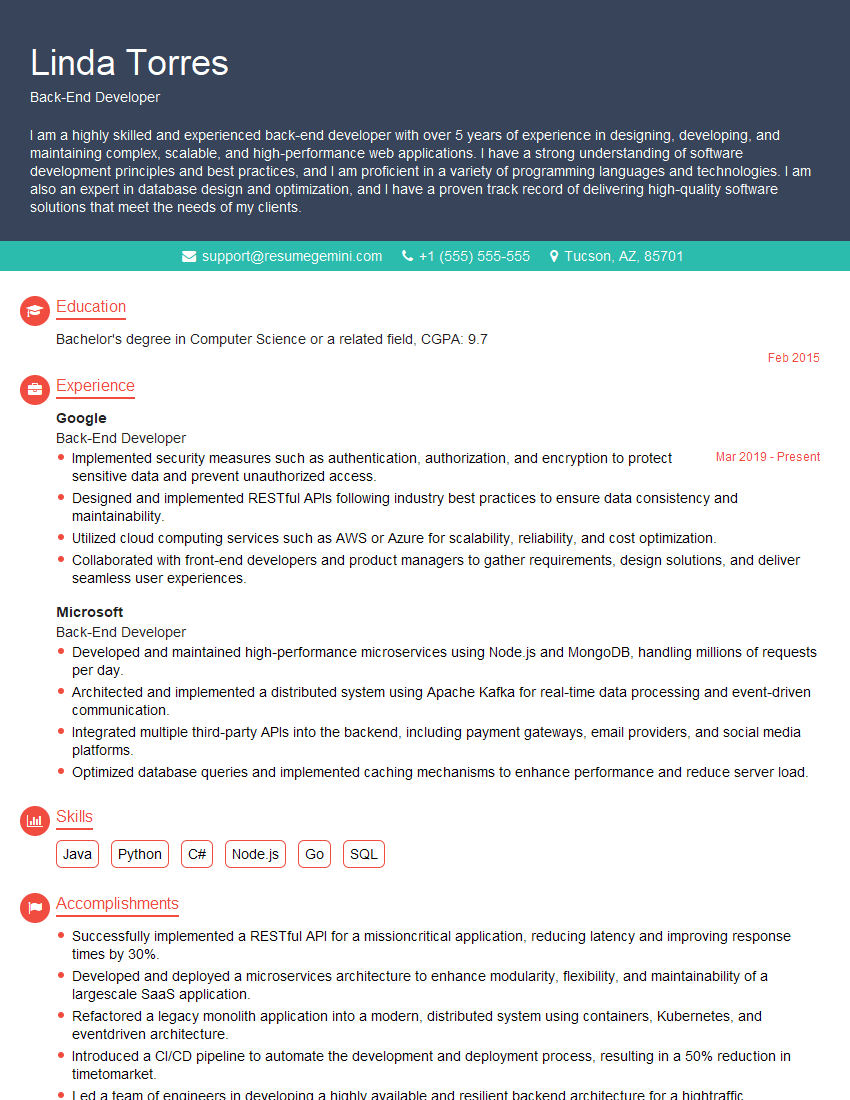
Back-End Developer Resume Sample
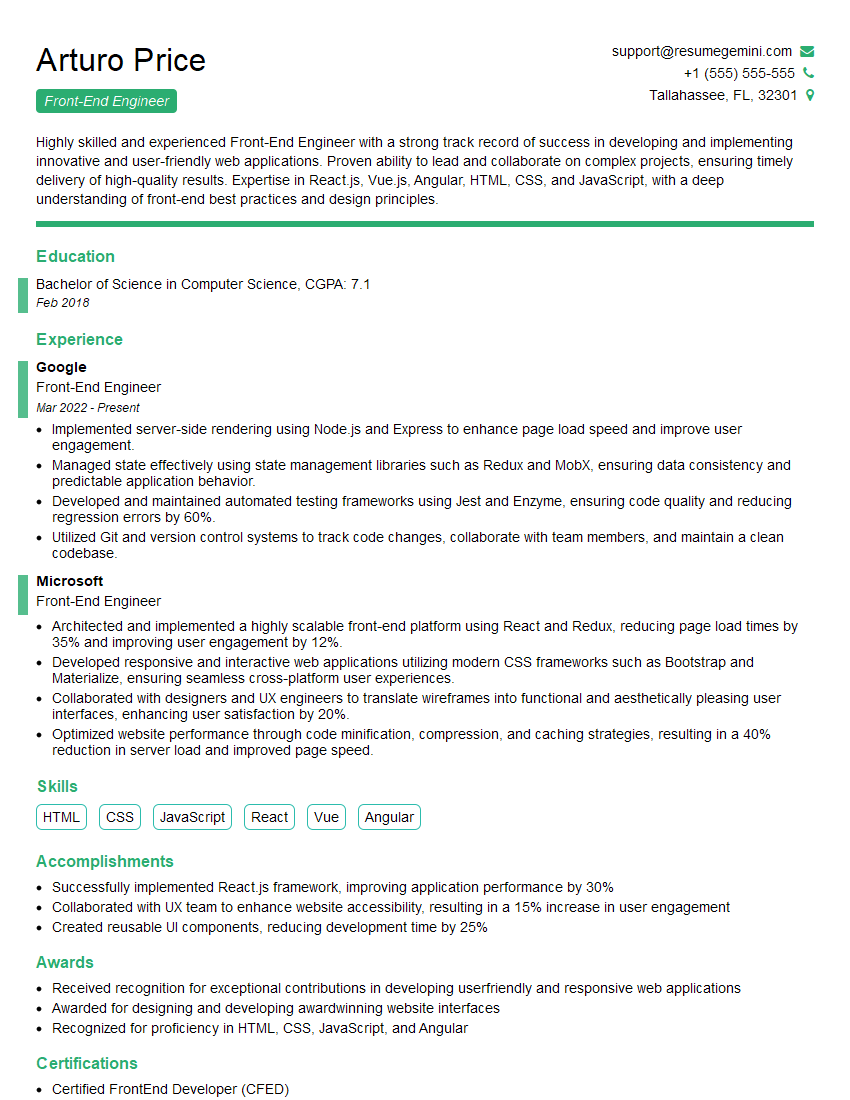
Front-End Engineer Resume Sample
Explore more articles
Users Rating of Our Blogs
Share Your Experience
We value your feedback! Please rate our content and share your thoughts (optional).
What Readers Say About Our Blog
Really detailed insights and content, thank you for writing this detailed article.
IT gave me an insight and words to use and be able to think of examples